
While using Remote Desktop Connection (RDC) with a remote Windows VPS or Windows server, many users are unaware that the session can be customized with many different options according to the user’s needs. One common setting is to change the remote session’s resolution.
Because the remote desktop is rendered locally on your PC or thin client, the screen resolution can be set to any resolution up to the size of your local screen (or full screen).
To set the screen resolution in RDC, choose “Show Options” before connecting to the RDP session:
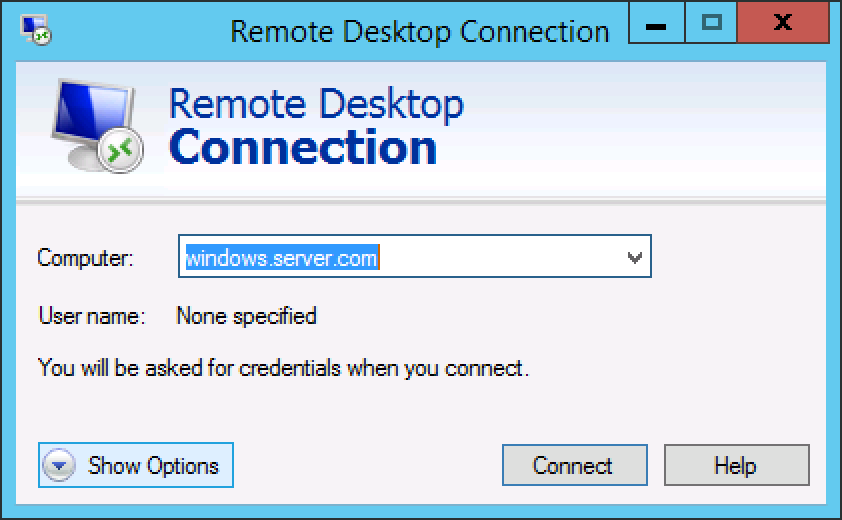
The settings panel will expand, with multiple tabs to select options for the RD session. Choose the Display tab. Here, you can change the resolution (screen size) that will be rendered when you connect to the remote desktop:
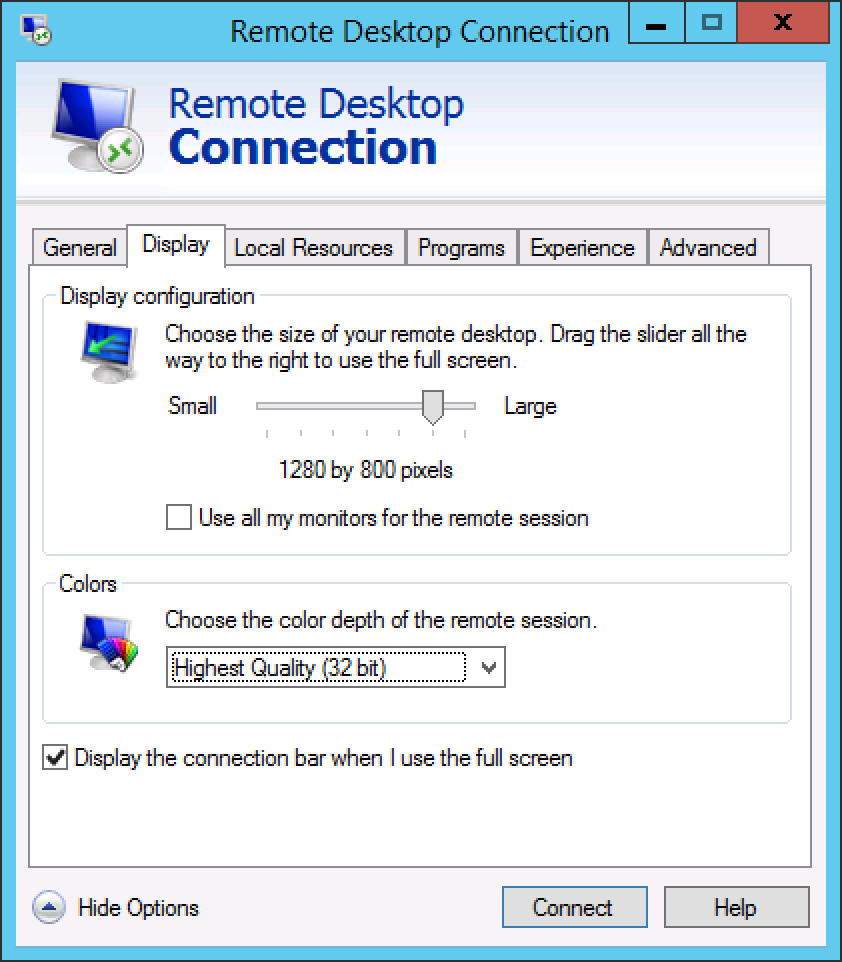
Choose a setting that is convenient for your local screen size. We suggest 1280×800 or slightly larger if possible.
NOTE: This setting also exists in Microsoft RDC for Mac OS X, CoRD, 2x Client, and other RDP clients.
Lightning-fast VPS hosting with enterprise SSD storage, global data centers, and 99.99% uptime. Built for developers, trusted by enterprises.
support@solvps.com
1-888-256-8213