
Sometimes you will find that Windows Server 2012 R2 or Windows Server 2008 R2 is installed with IIS, Microsoft’s web server (Internet Information Services), pre-installed. If you want to remove IIS and its related configuration, simply follow the steps below.
1. Log in to your Windows Server via remote desktop, or locally. An account with Administrator privileges is needed.
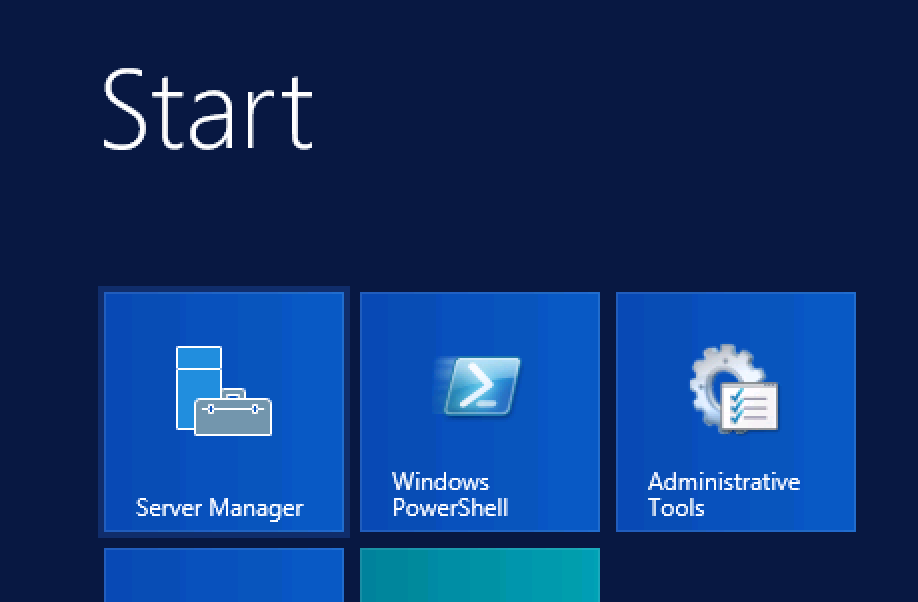
2. Open Server Manager from the Start menu.
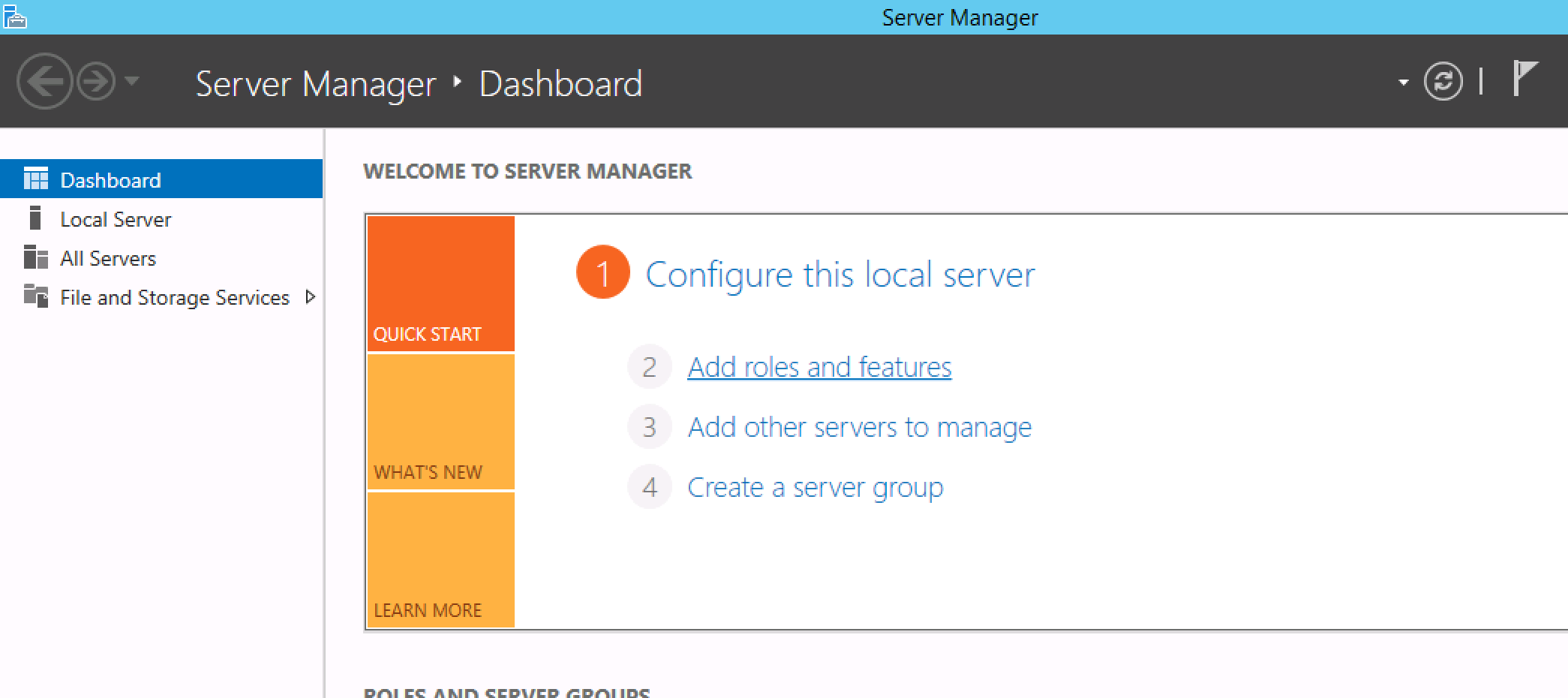
3. Click “Add Roles and Features” to open the Roles/Features Wizard.
4. Click “Next” through the wizard, selecting nothing, until you reach the “Server Roles” section. On this pane, look for “Web Server (IIS)” in the list of Roles, and de-select it.
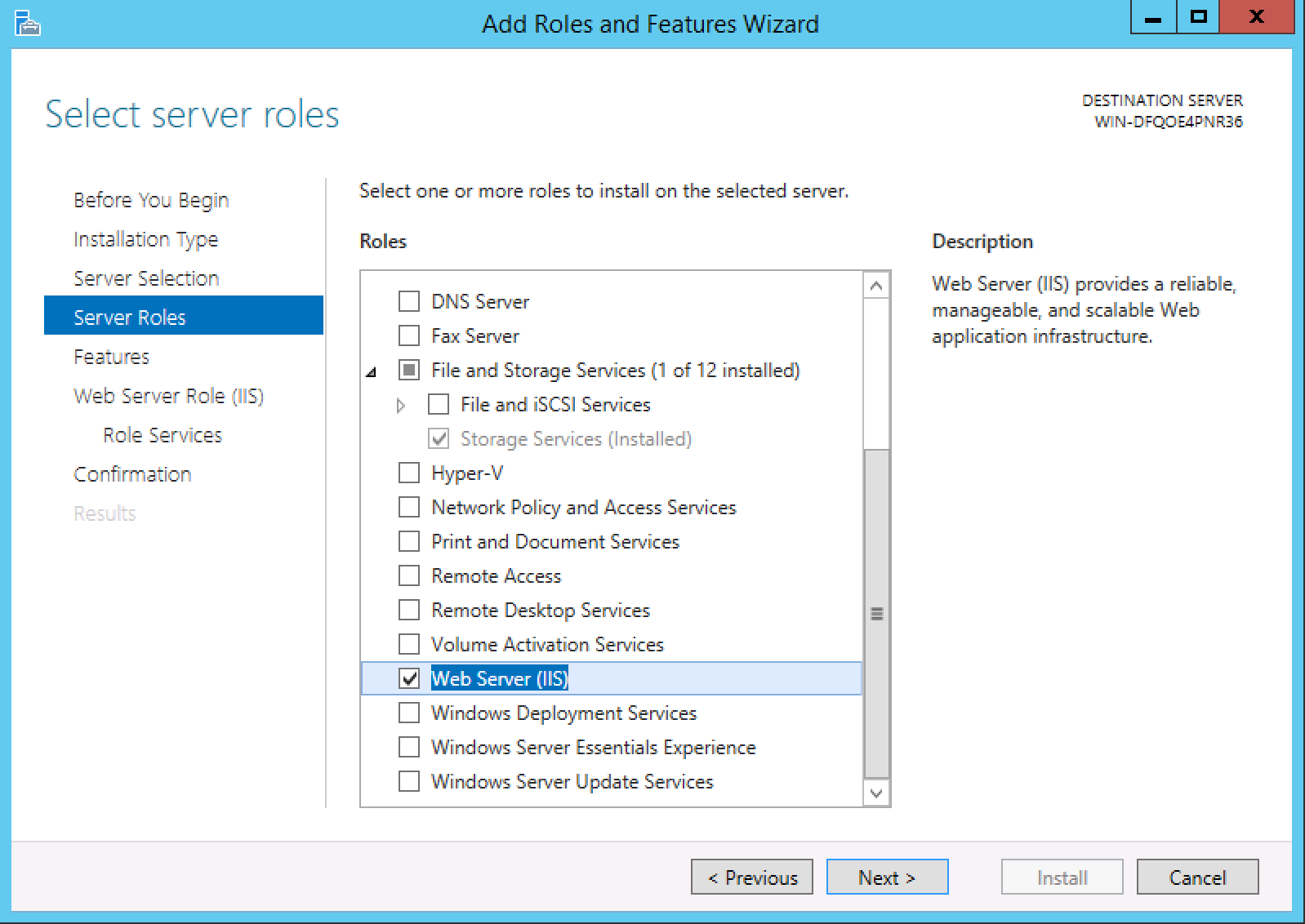
5. Click Next through the remainder of the wizard, and confirm the Installation (actually an uninstallation). Once the wizard has completed, IIS will be removed from your system.
That’s it! A reboot may be required to finalize the uninstallation.
This guide applies to:
Lightning-fast VPS hosting with enterprise SSD storage, global data centers, and 99.99% uptime. Built for developers, trusted by enterprises.
support@solvps.com
1-888-256-8213