
Remote desktop protocol (RDP) is supported by a few Linux applications, the most popular being rdesktop. It is available for most Linux distributions and for that reason we will demonstrate its usage below.
The Linux server show below is a CentOS server with GNOME desktop, but the same process should work with Ubuntu, Fedora, Mint, Debian, and other Linux distributions, taking care to use the distribution’s native package installer to install rdesktop.
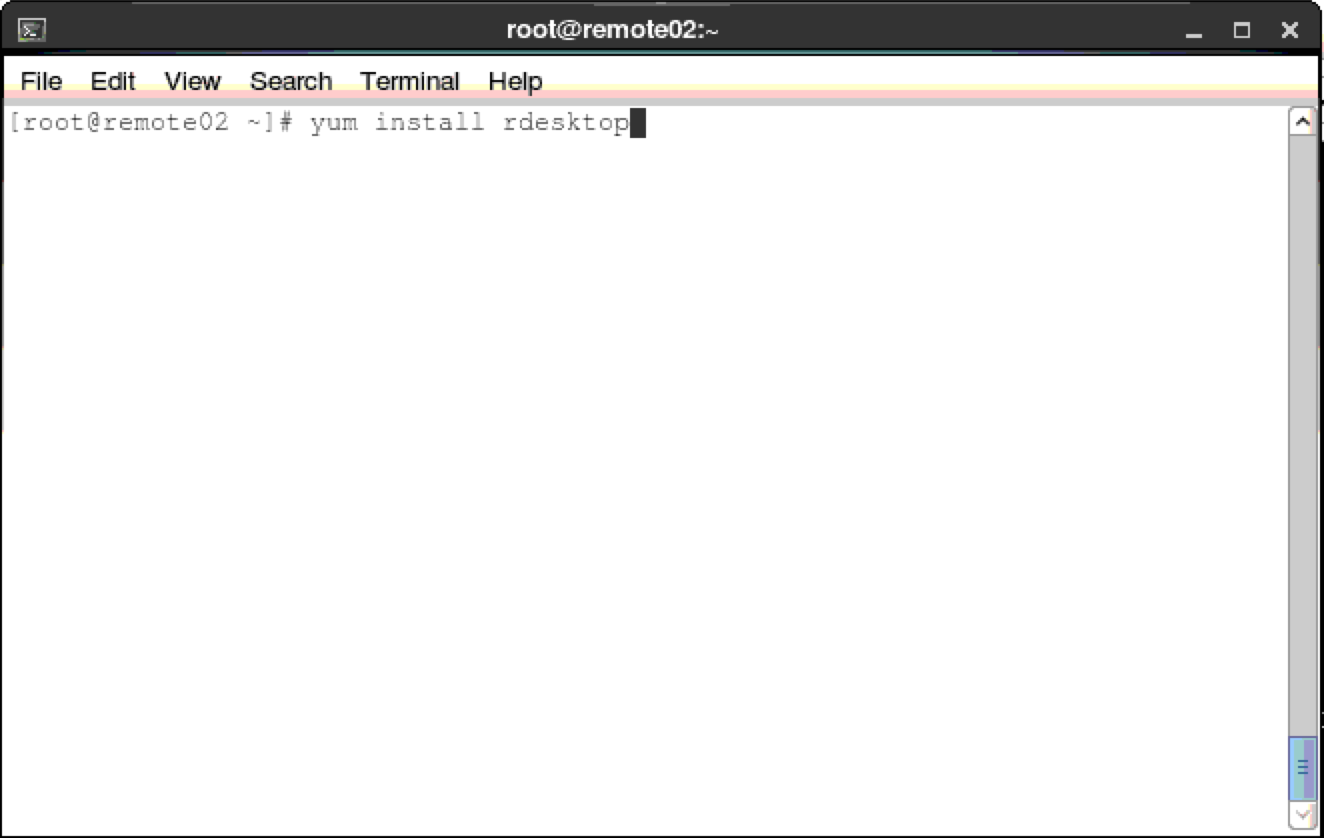
1. Open a local terminal (command prompt) session. For CentOS/Fedora, run “yum install rdesktop“. For Ubuntu/Debian, run “apt-get install rdesktop”. The program should be located and installed along with dependencies.
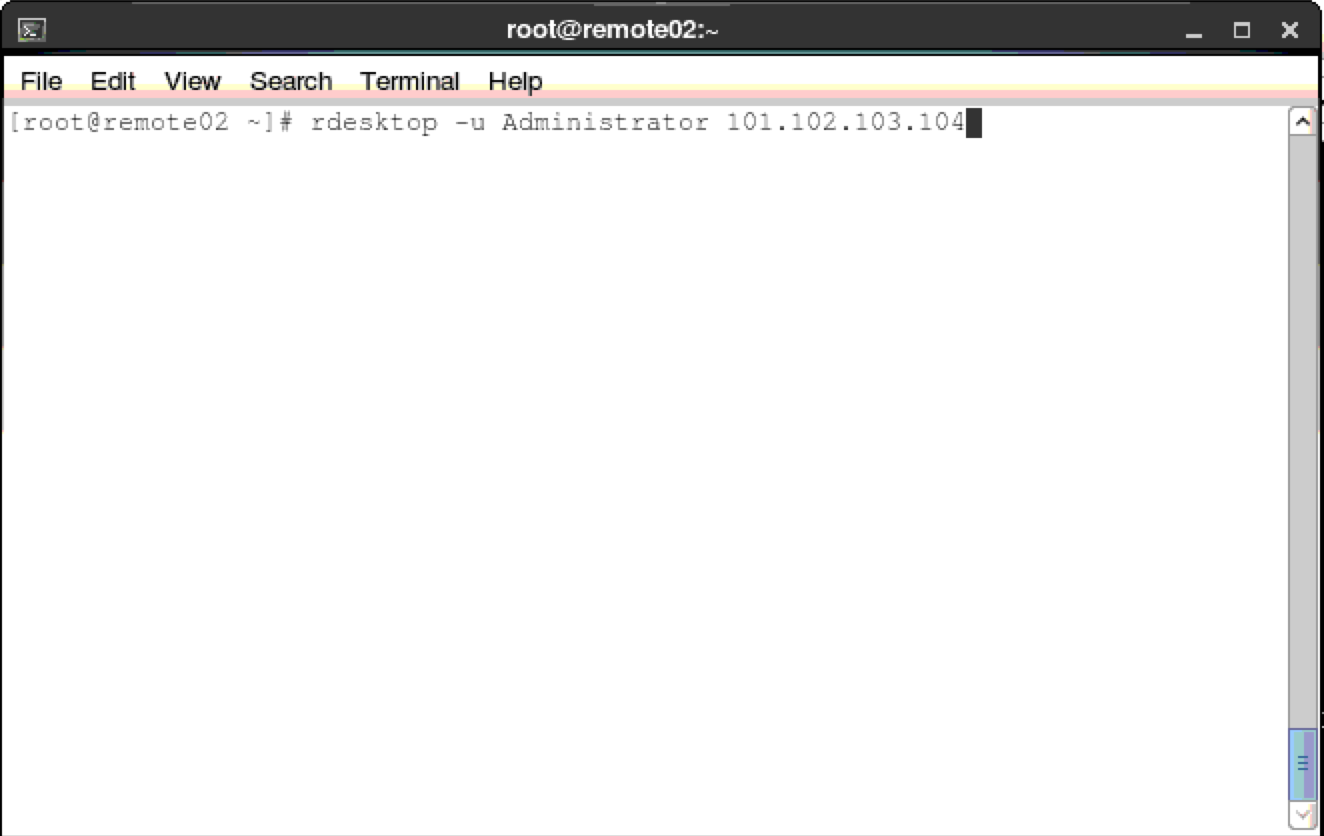
2. Next, use the rdesktop command to open a remote desktop session. The syntax is simple, change the following example using your Windows server’s username and public IP address: rdesktop -u Administrator 101.102.103.104
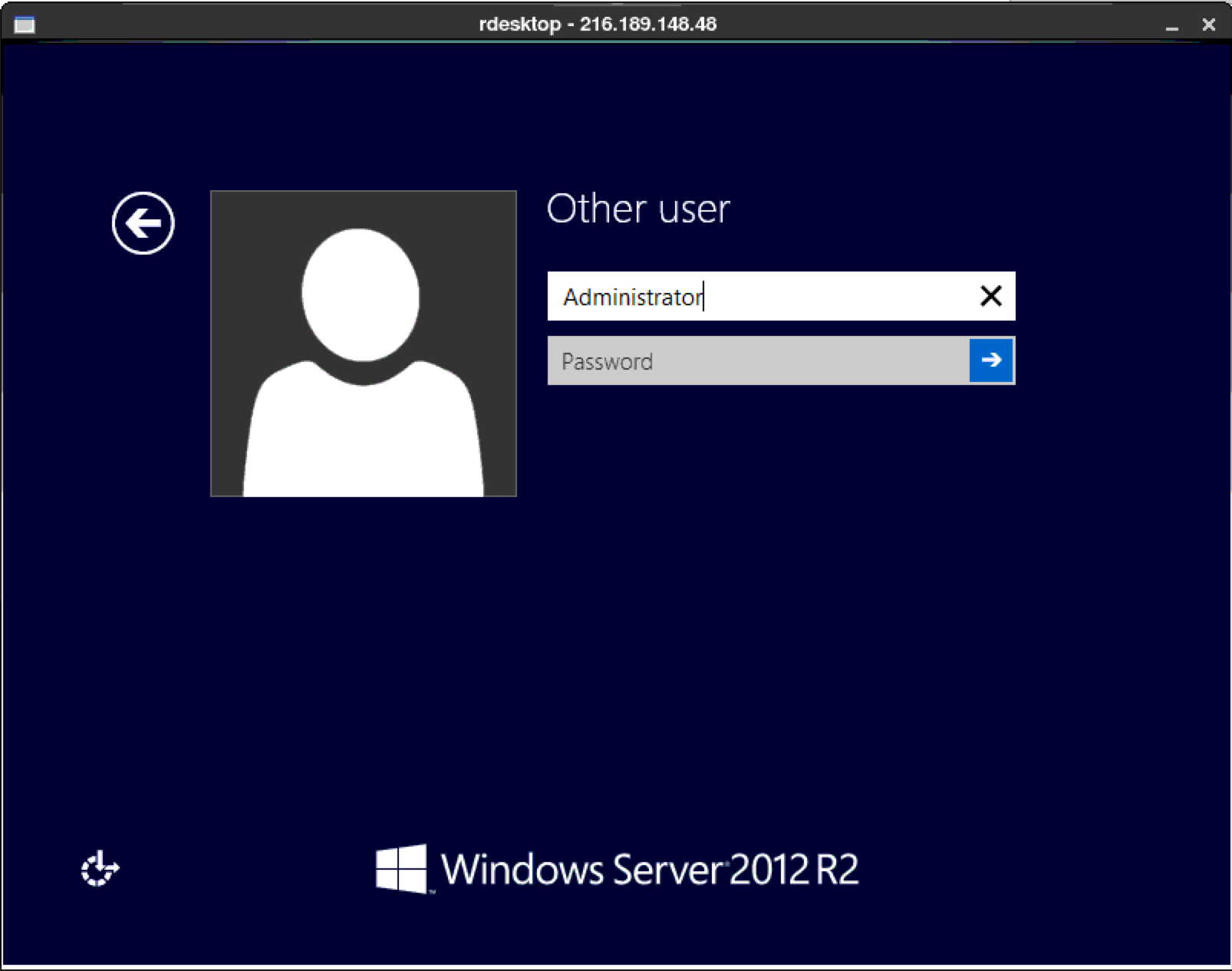
3. A new window will open with the remote Windows GUI. You should log in with the Windows system’s password.
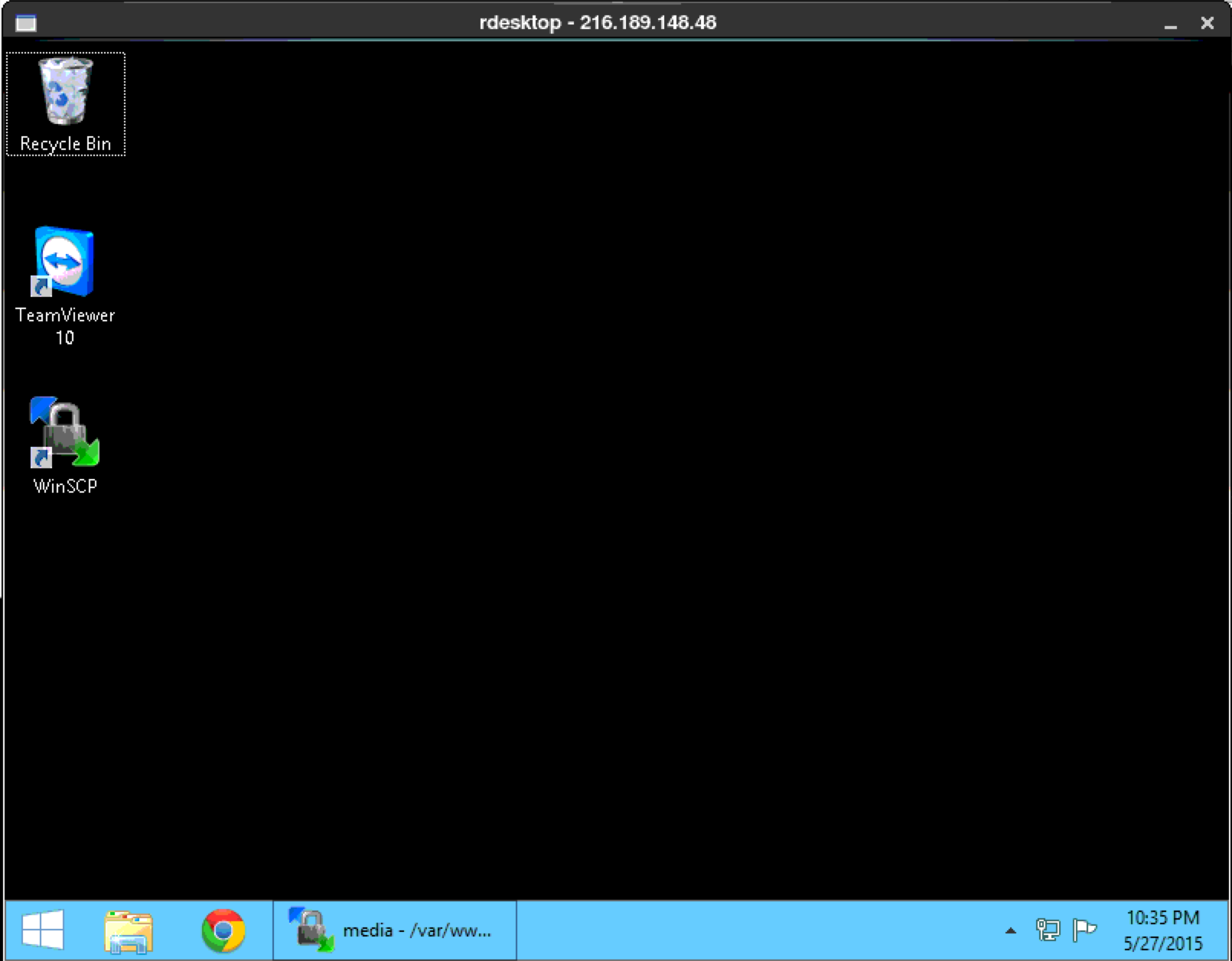
4. That’s it! Enjoy using your Windows remote desktop.
If you experience any trouble with this process, or would like assistance connecting to a Windows server or Windows VPS, please don’t hesitate to contact our Technical Support team.
Lightning-fast VPS hosting with enterprise SSD storage, global data centers, and 99.99% uptime. Built for developers, trusted by enterprises.
support@solvps.com
1-888-256-8213