
SQL Server Management Studio (SSMS) is part of SQL Server Management Tools provided by Microsoft for administrators and developers to interface with Microsoft SQL Server. Management Studio is used to connect to a database and directly manage its layout, settings, database objects, and much more.
Read on to see how to install SQL Server Management Studio on a Windows Server or Windows VPS.
(Need help deploying SQL Server? We provide a full range of Windows Server and Microsoft SQL Server based solutions!)
Depending on your deployment, you may also want to install SQL Server Management Studio. SSMS is used to access local and remote SQL Server databases for administration and development. If you do not already have Management Studio installed elsewhere, you should install it on your Windows Server or VPS alongside SQL Server Express. Follow the steps below to install SQL Server Management Tools.
SQL Server Management Tools are provided free by Microsoft for all editions of SQL Server.
Visit the Microsoft page to download: https://docs.microsoft.com/en-us/sql/ssms/download-sql-server-management-studio-ssms
Download the installer to the Windows server or VPS, then simply run the installer.
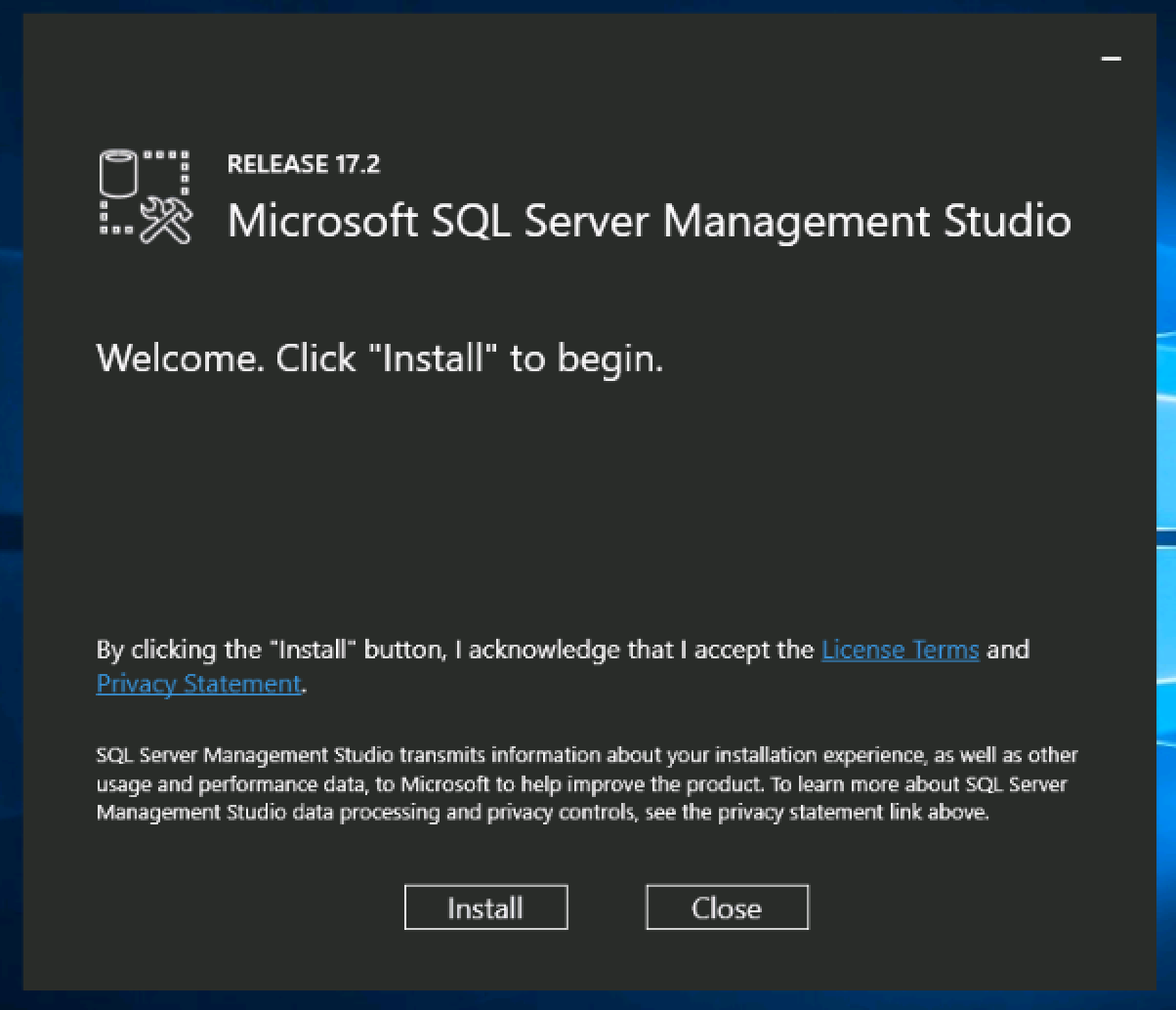
Click Install to start the installation. SSMS will download and install the latest version for your system automatically.
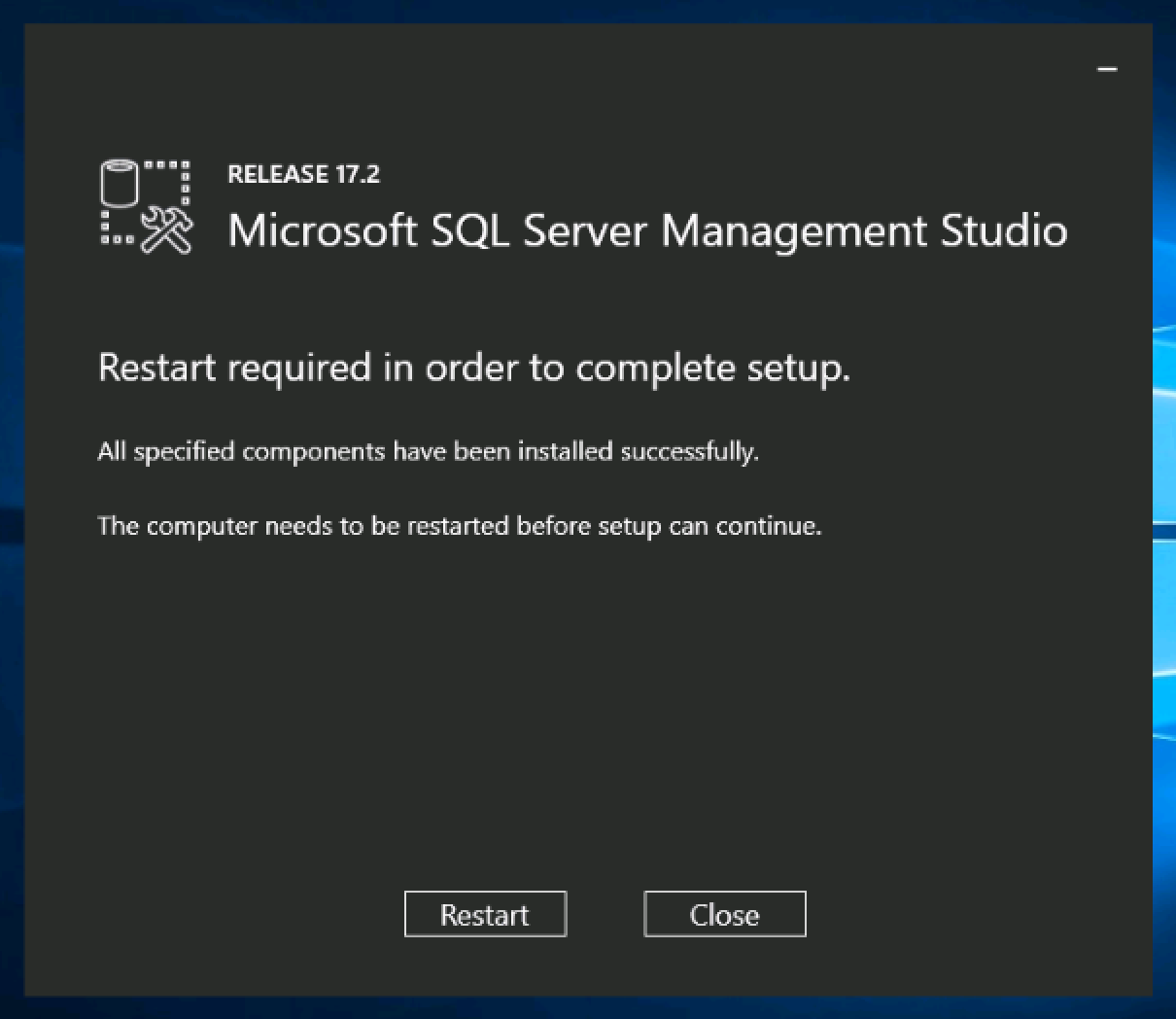
When the installation is complete, the system will require a Restart to finish the installation.
Lightning-fast VPS hosting with enterprise SSD storage, global data centers, and 99.99% uptime. Built for developers, trusted by enterprises.
support@solvps.com
1-888-256-8213