
Windows Firewall is a utility included with all recent versions of Windows. It includes options to open and close ports, allow specific ports and programs through the firewall, which is the equivalent of “port forwarding” on a Windows Server or Windows VPS that is not behind a NAT device. In this guide we will show you how to forward a specific port on a Windows VPS or dedicated server.
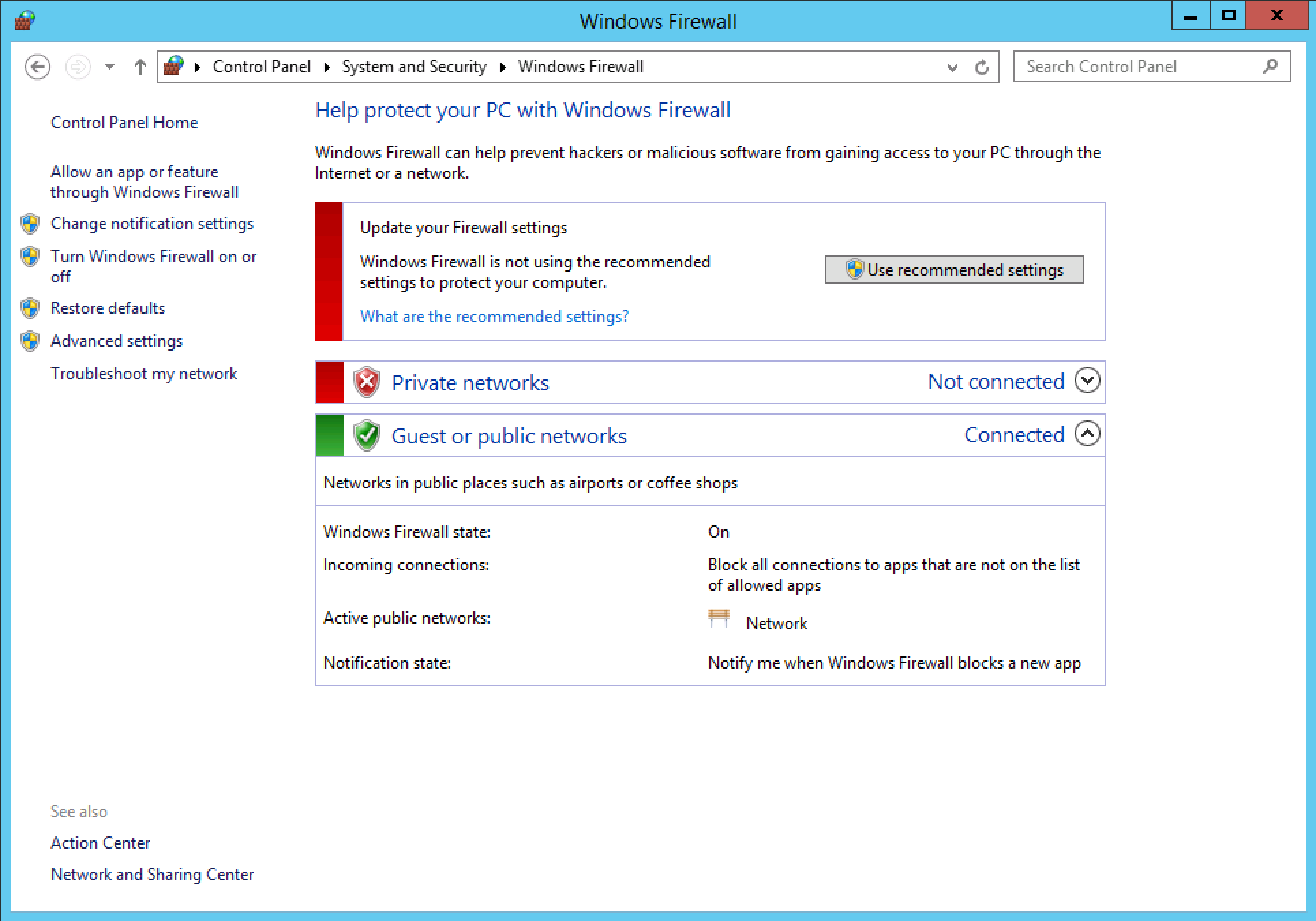
First, open Control Panel and navigate to System & Security. Then, open Windows Firewall. In the left-hand menu, click “Advanced settings”.
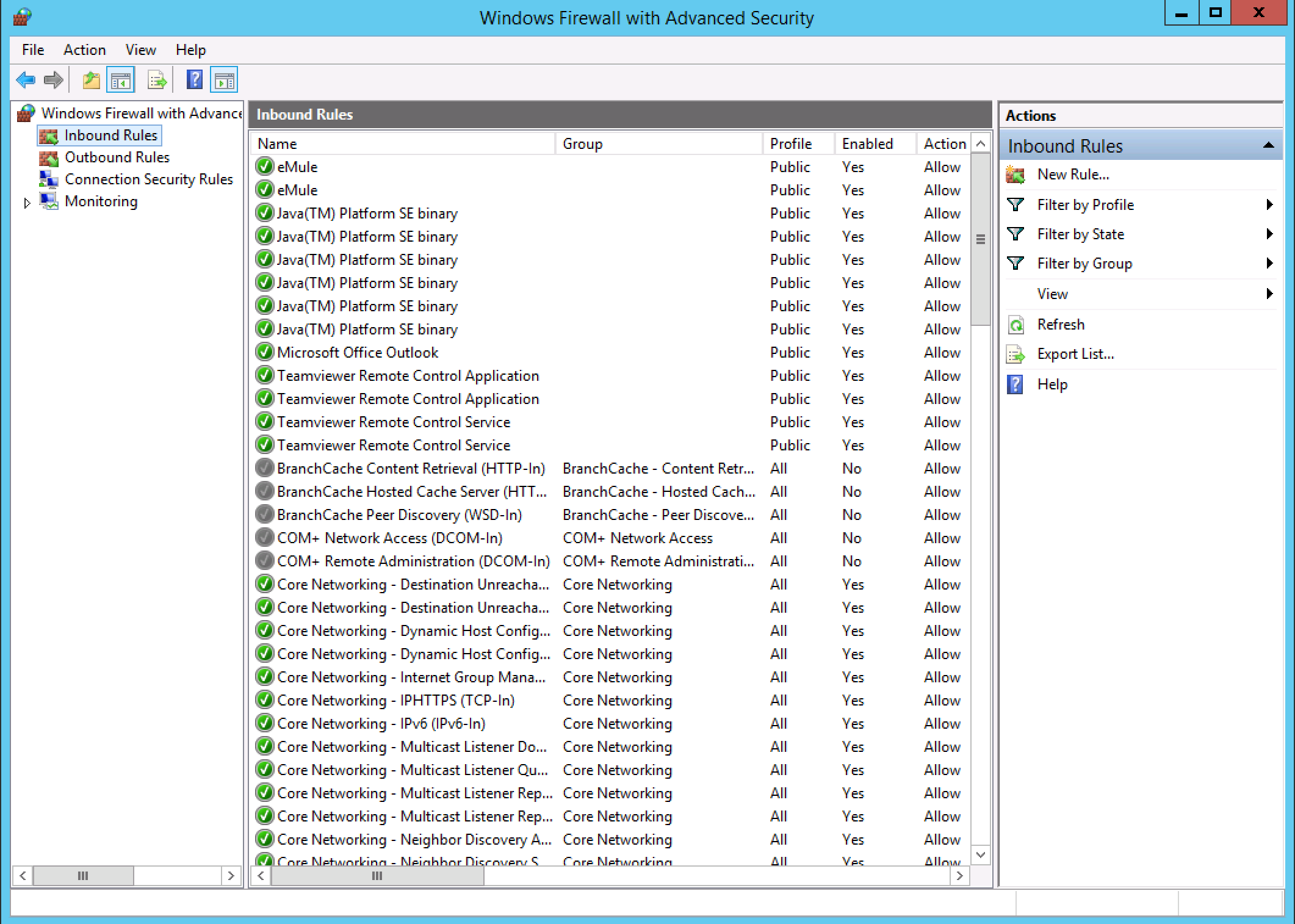
The Advanced Security panel will appear. In the left-hand menu, there are two types of rules:
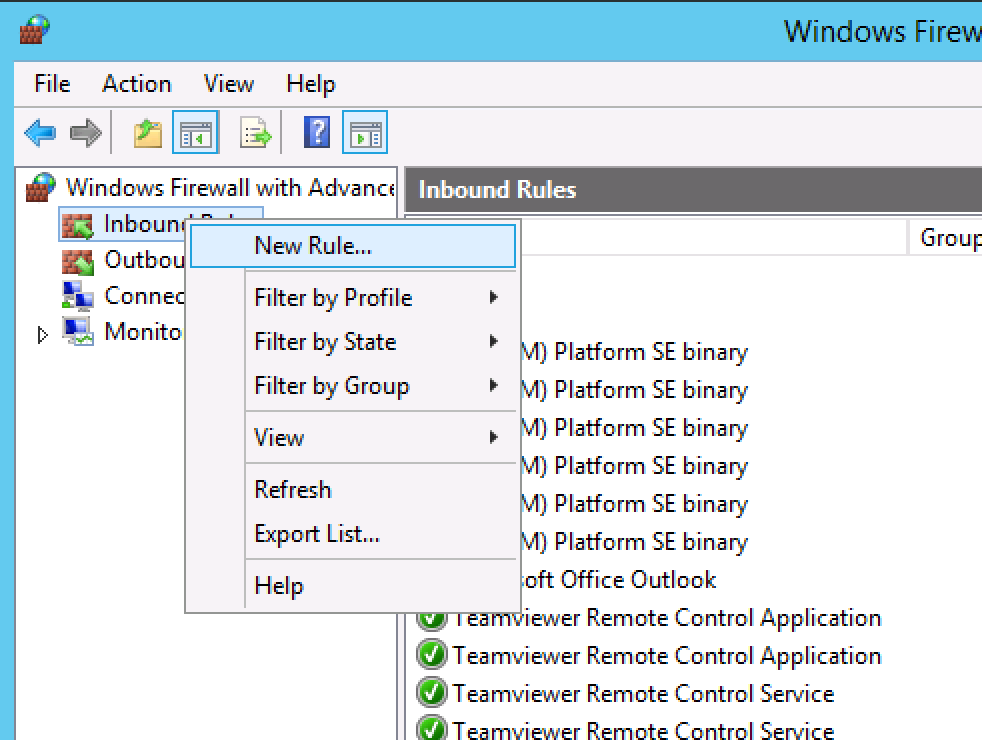
It is often useful to create both an inbound rule and an outbound rule for your application’s port. Repeat the following steps 2 times, once for Inbound, and once for Outbound. First, right-click “Inbound Rules” and select “New Rule…”
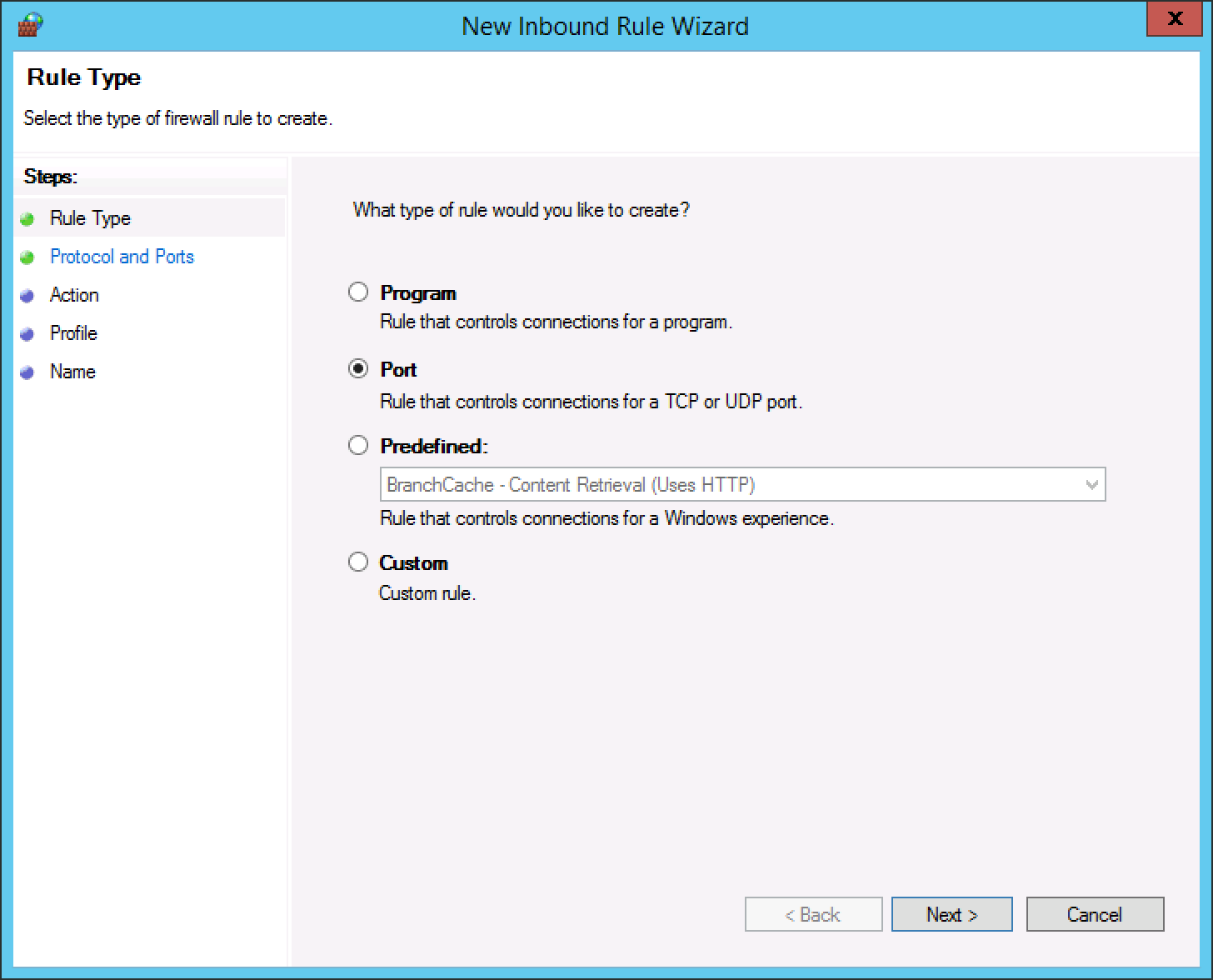
Choose the type of rule to setup. We are defining a specific Port number.
Type the port number your application uses, and choose TCP or UDP protocol (most applications use TCP).
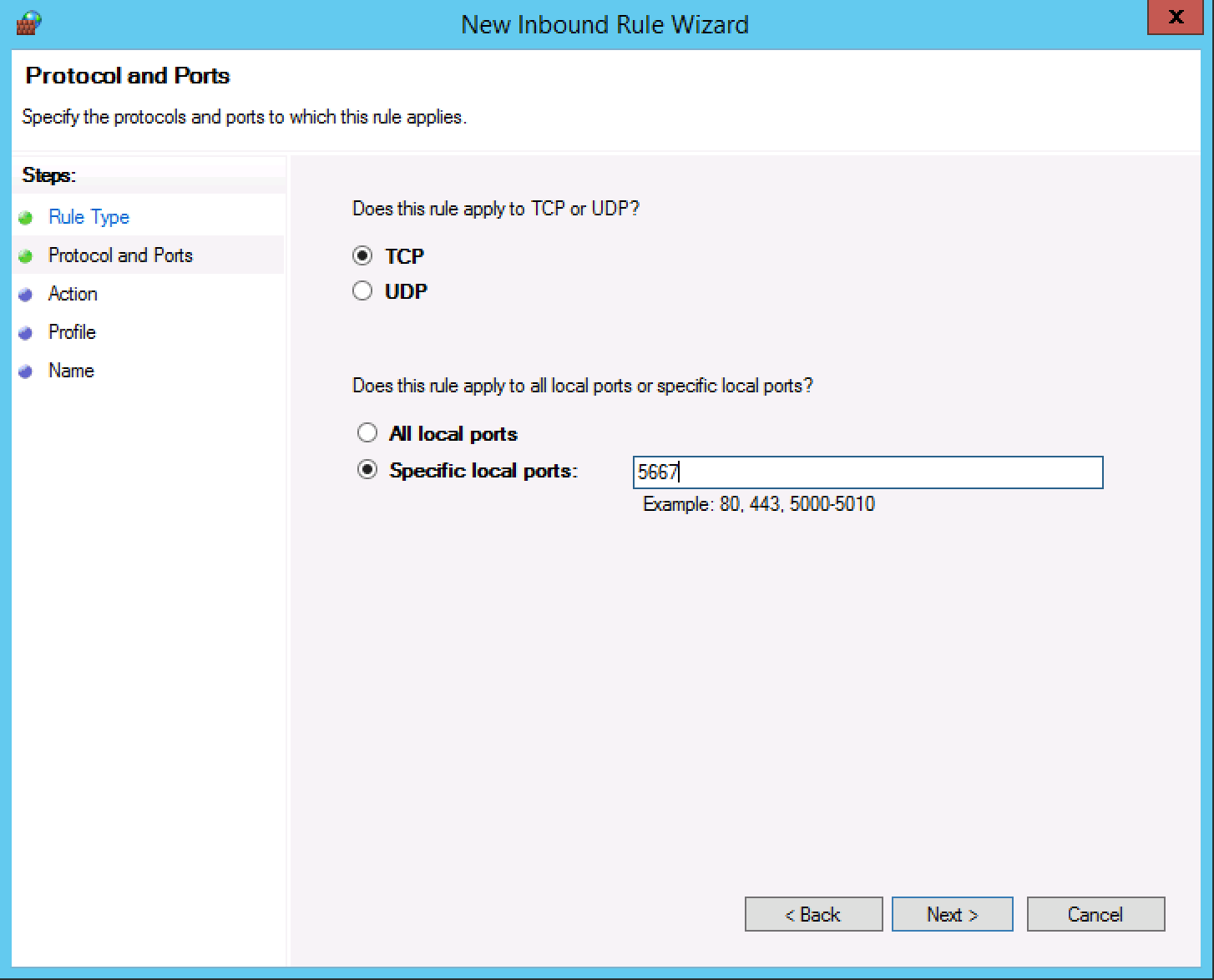
Select whether to apply the rule only on local (private) networks, or on public networks as well. You will want to select Public, most likely.
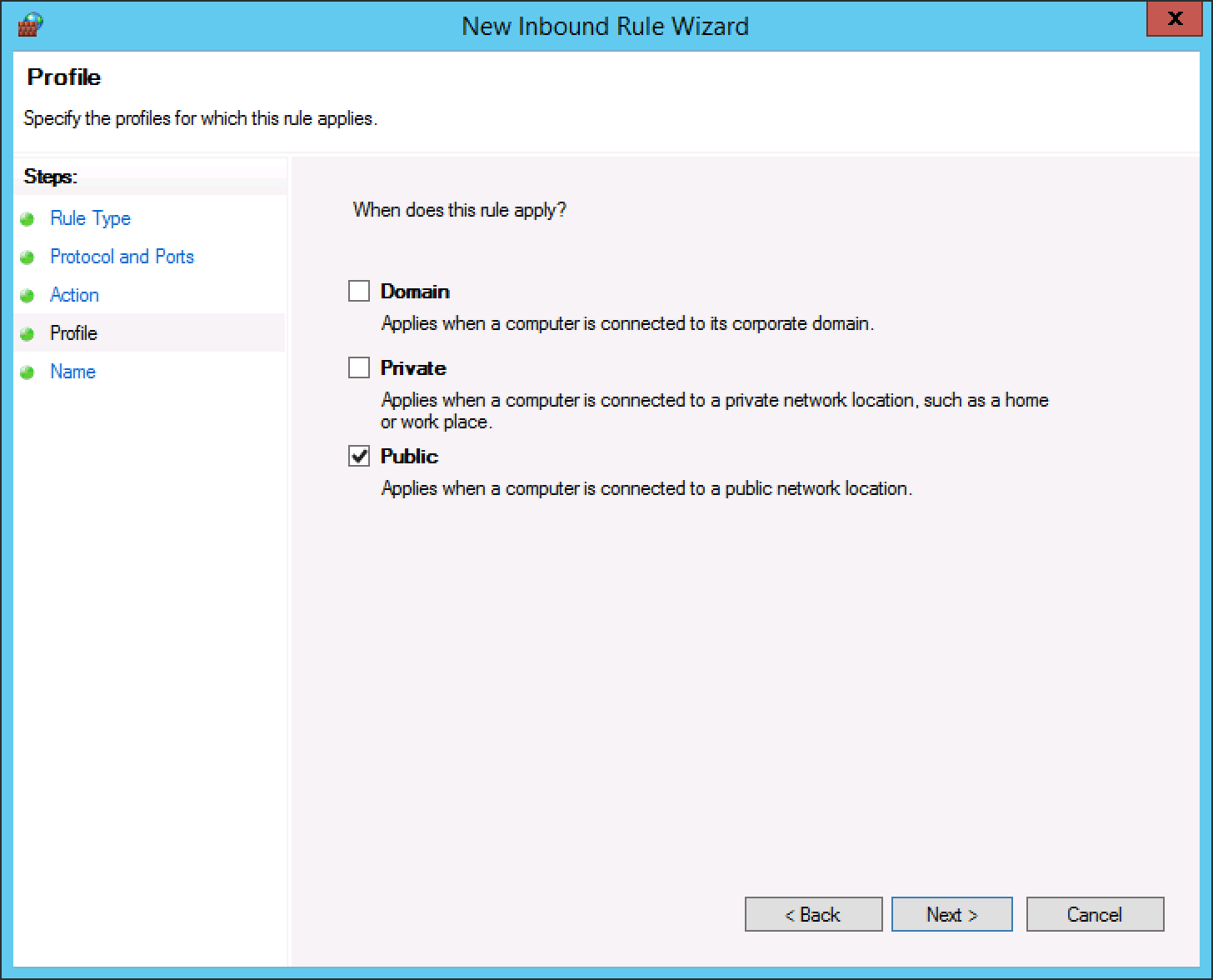
Finally, select whether this rule is for explicitly allowing connections on this port, or explicitly blocking connections on this port.
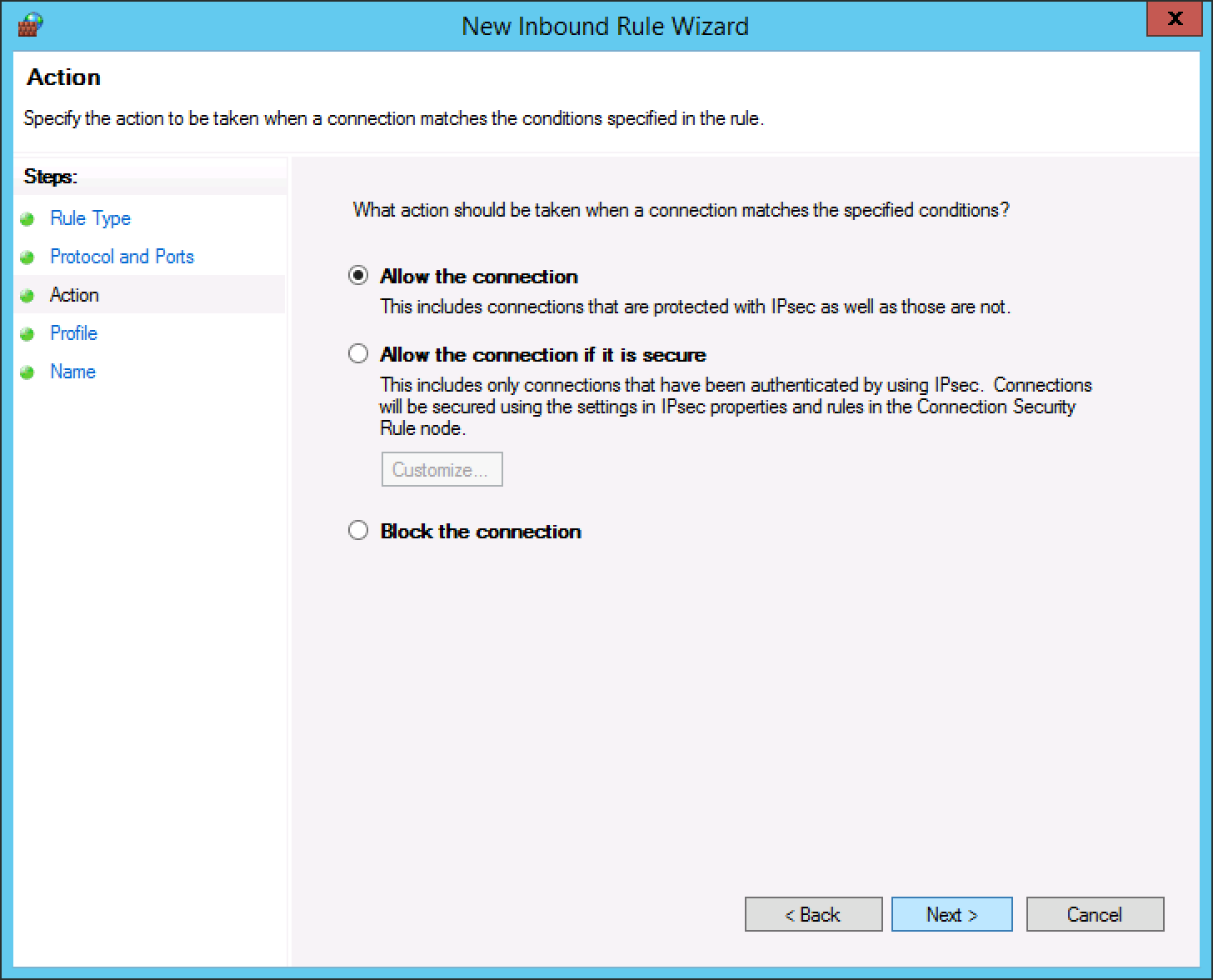
That’s it! The firewall rule will go into effect immediately, opening the port to traffic to (or from) your server. As we noted above, be sure to repeat the process as an Outbound rule, if you want to open a port for both sending and receiving.
We are happy to help with opening ports and other Windows Server configuration questions!
This guide applies to:
Lightning-fast VPS hosting with enterprise SSD storage, global data centers, and 99.99% uptime. Built for developers, trusted by enterprises.
support@solvps.com
1-888-256-8213