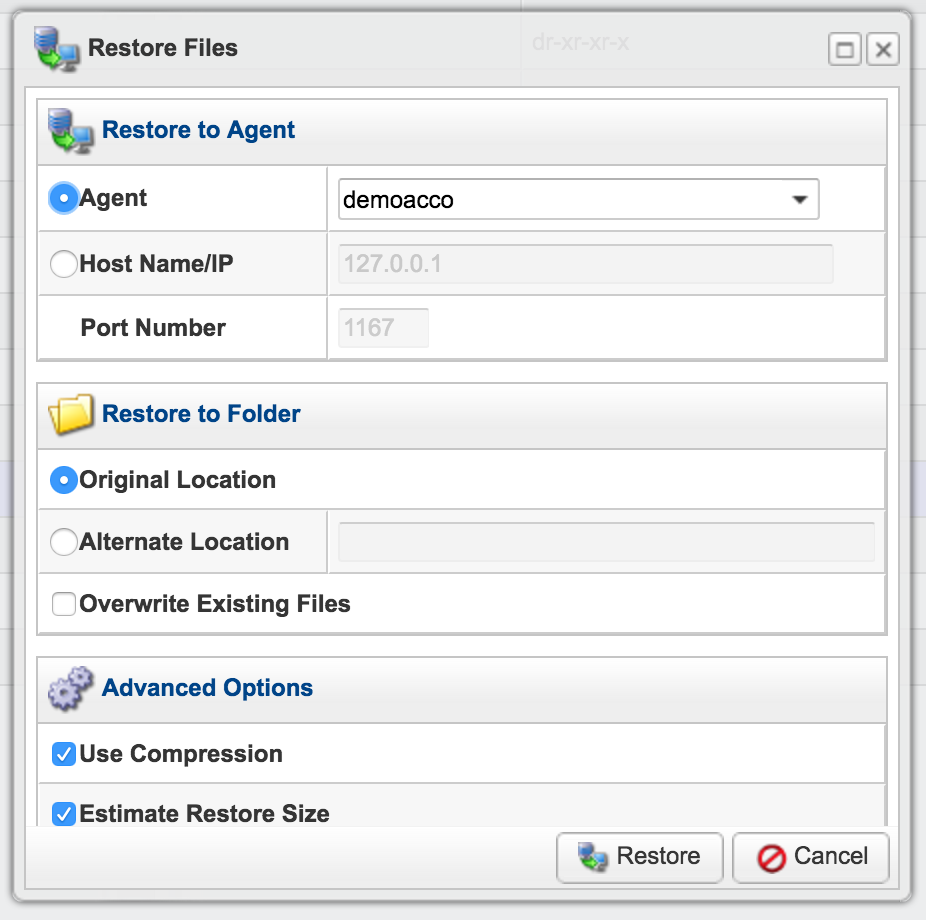
This process can be used to restore individual files or folders to a system that is protected by Cloud Backup.
Log in to the Backup Manager. (See: How to Log in to the Backup Manager)
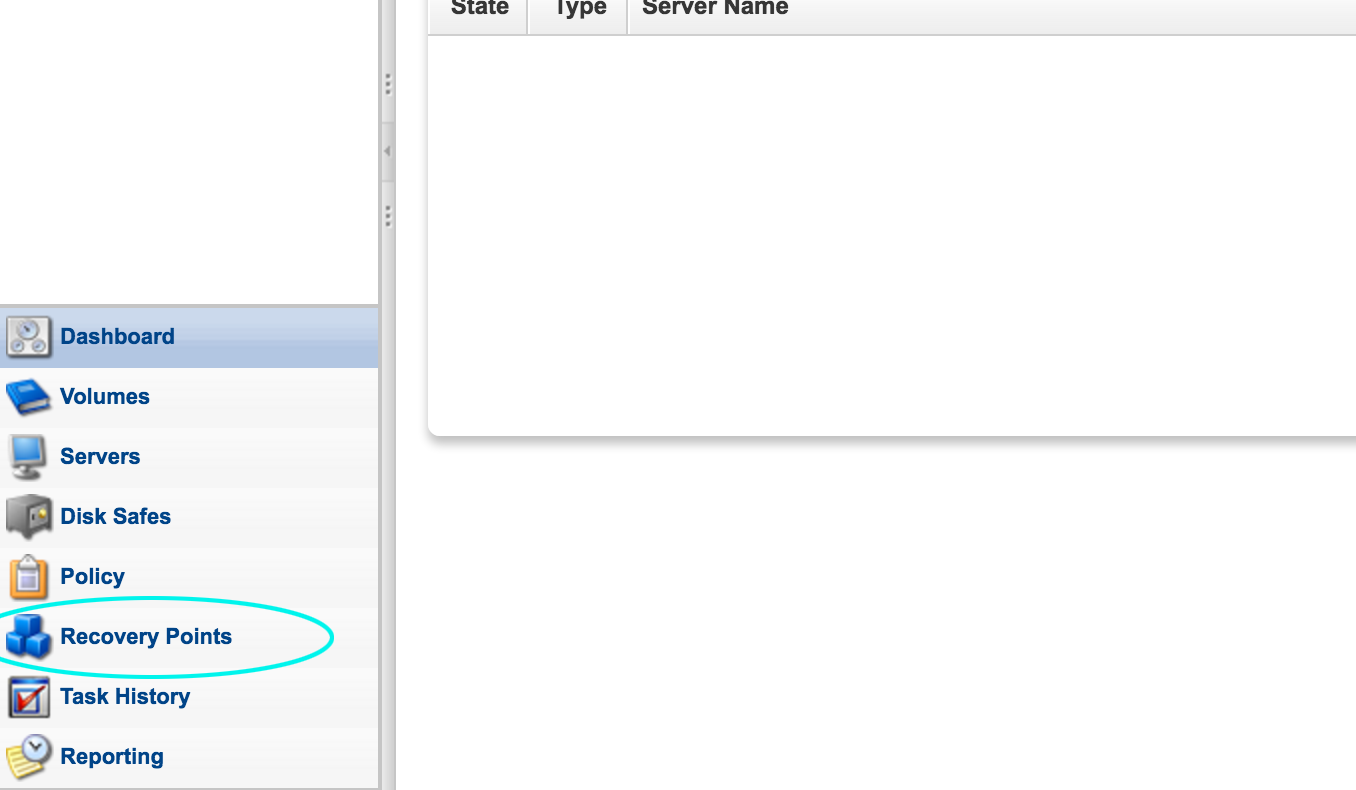
Click Recovery Points in the navigation menu.
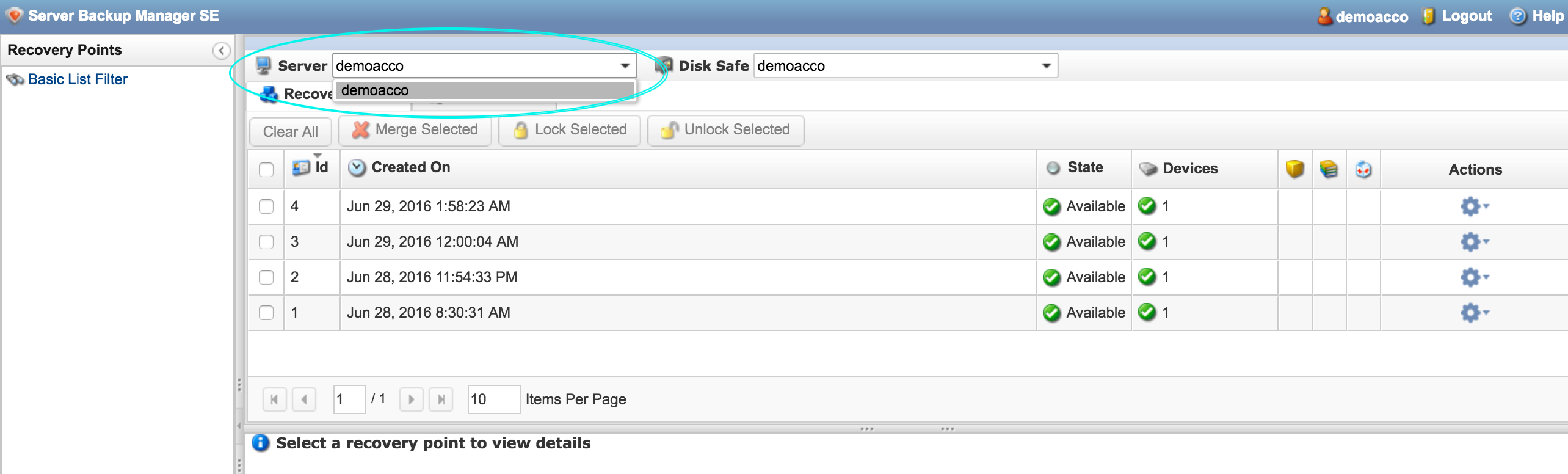
Select your server in the Server drop down menu.
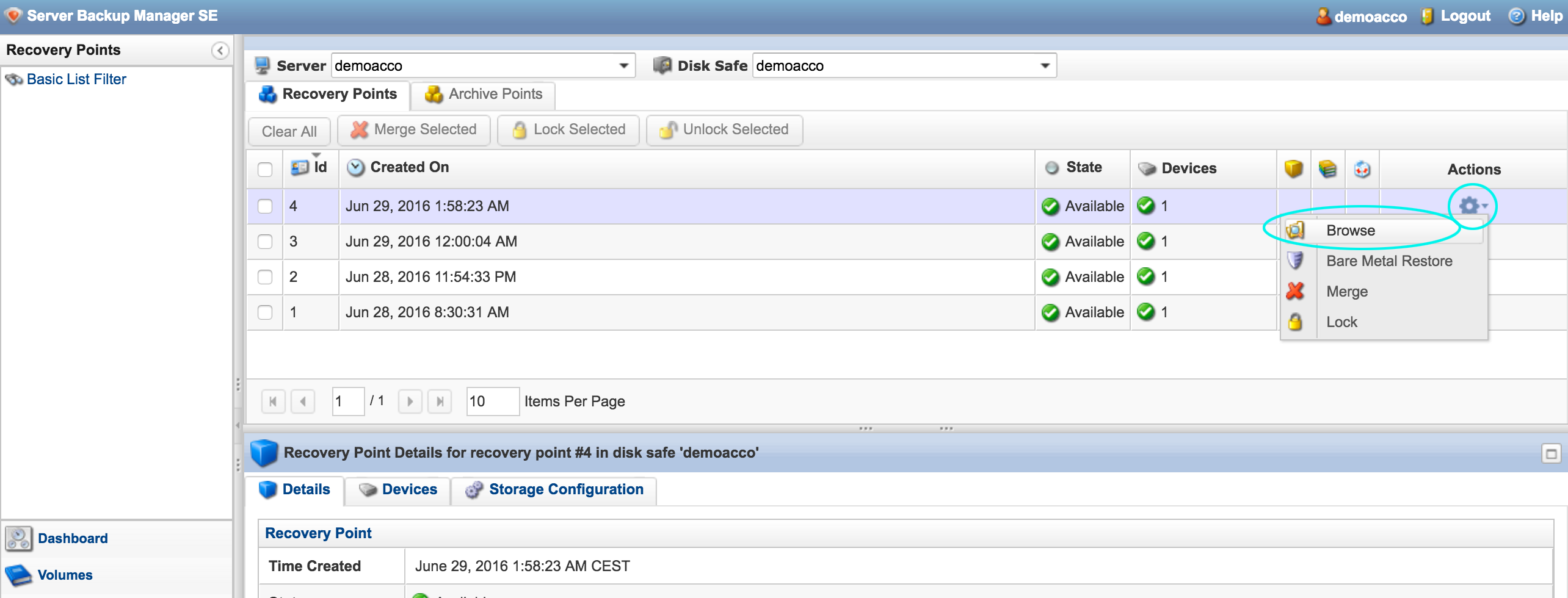
Find the recovery point (backup) you would like to restore from, and click Browse in the Actions menu.
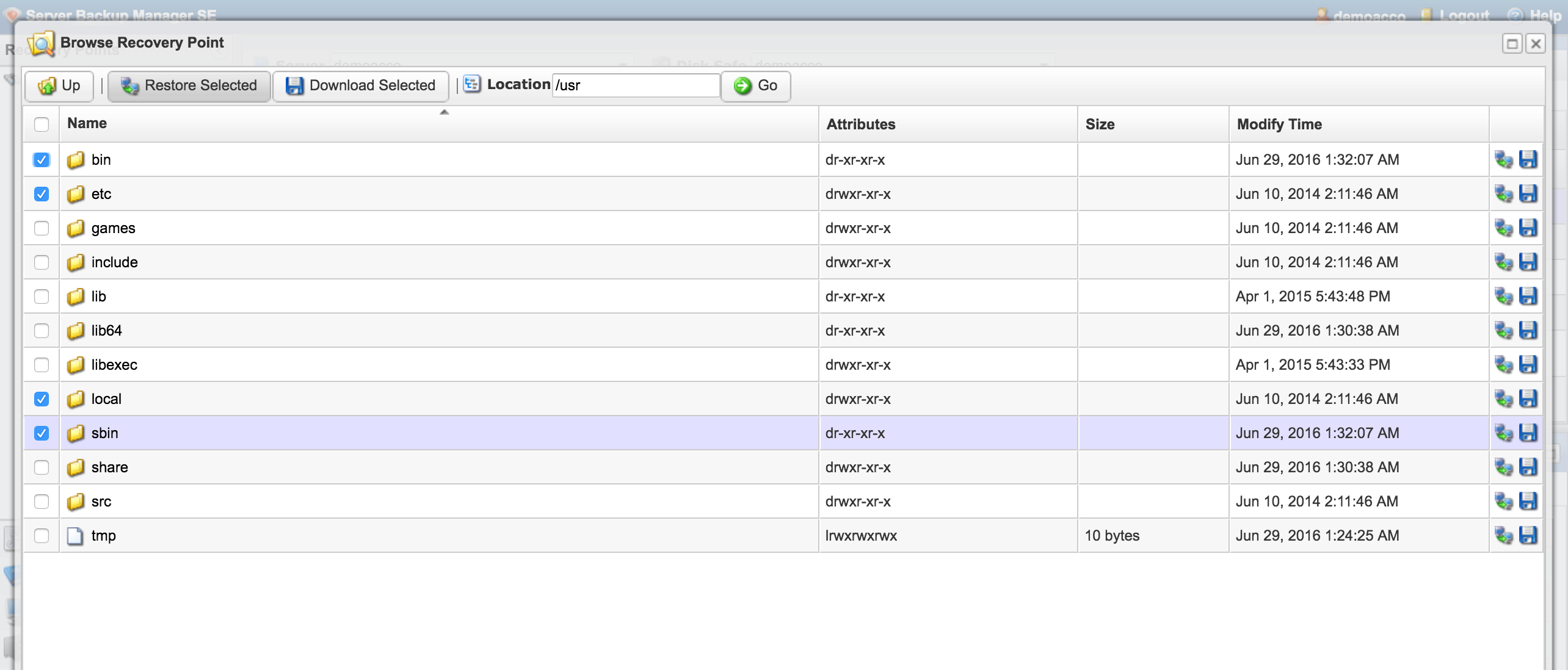
You will see a file browser opened to the root directory of your server. Browse to the folder or files you want to restore by double-clicking on folder icons. Select the files or folders, then click Restore Selected.
In our example we are going to restore some system folders that may have become corrupted.
Use the default settings in the Restore Settings menu. Click OK. The file restore will be scheduled to run immediately.
Lightning-fast VPS hosting with enterprise SSD storage, global data centers, and 99.99% uptime. Built for developers, trusted by enterprises.
support@solvps.com
1-888-256-8213