
In this post we will look at a simple way to continuously and accurately synchronize system time on a Windows server. There are many applications that might require accurate timekeeping down to the millisecond, and this is an excellent solution for those situations.
First, download and install NetTime from their official website: http://www.timesynctool.com/
NetTime is a Windows program that uses global NTP (Network Time Protocol) servers to synchronize the system clock.
After installing and starting NetTime, you can find the application in the system tray. Double-clicking the NetTime icon will open a summary. After the initial installation, the time may not be synchronized, so you should start the synchronization.
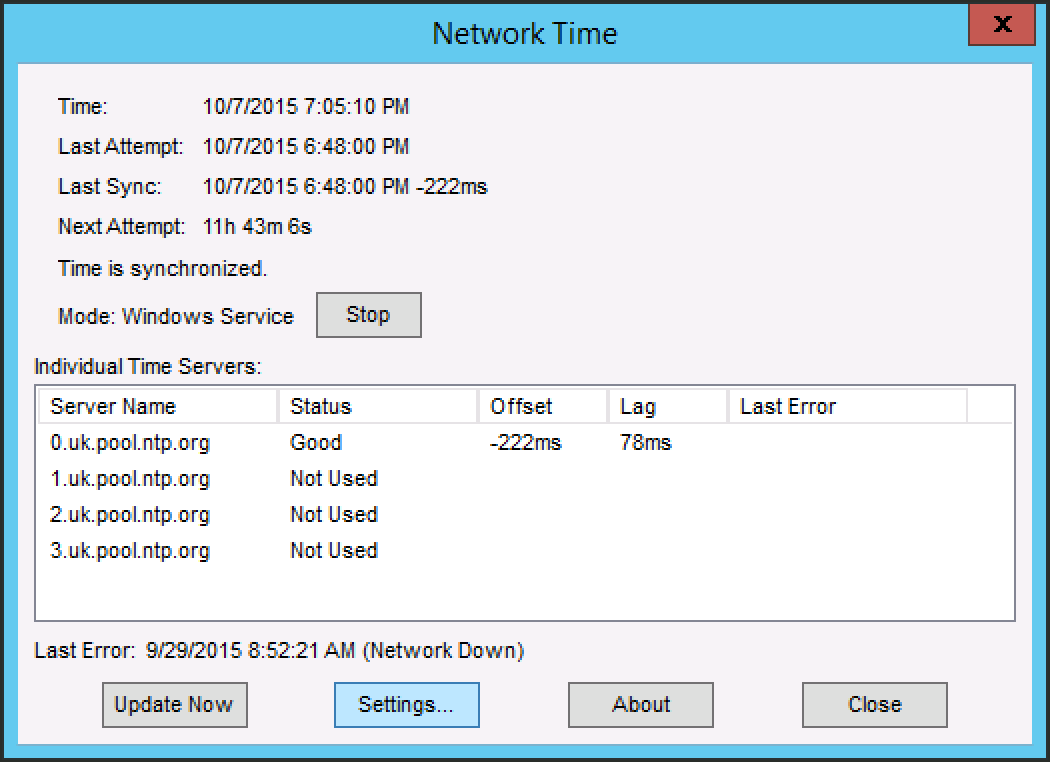
Click “Settings…” to choose NTP servers and synchronization options.
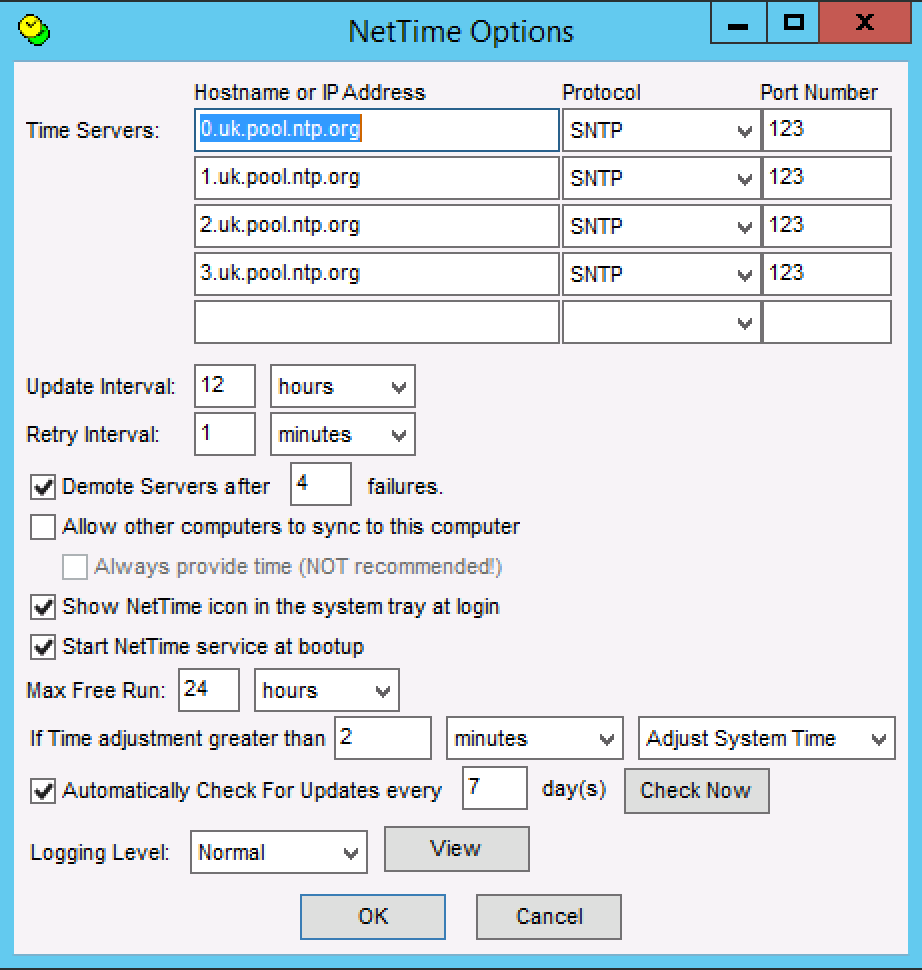
That’s it! NetTime will run in the background as a Windows Service, and will automatically start when the system is rebooted, keeping your system clock synchronized at all times.
This guide applies to:
Lightning-fast VPS hosting with enterprise SSD storage, global data centers, and 99.99% uptime. Built for developers, trusted by enterprises.
support@solvps.com
1-888-256-8213